

Unified Setup Center · choose a product without mixing operational data
 Hydra IPTV
 X IPTV Pro
FALCON IPTV STORE · Hydra IPTV
 Hydra IPTVPremium viewing with simple setup across compatible devices.
Hydra IPTV Setup and Configuration
Choose your device first, then use the correct app and sign-in method. Always use the Username and Password currently shown for your Hydra service in Falcon Client Area.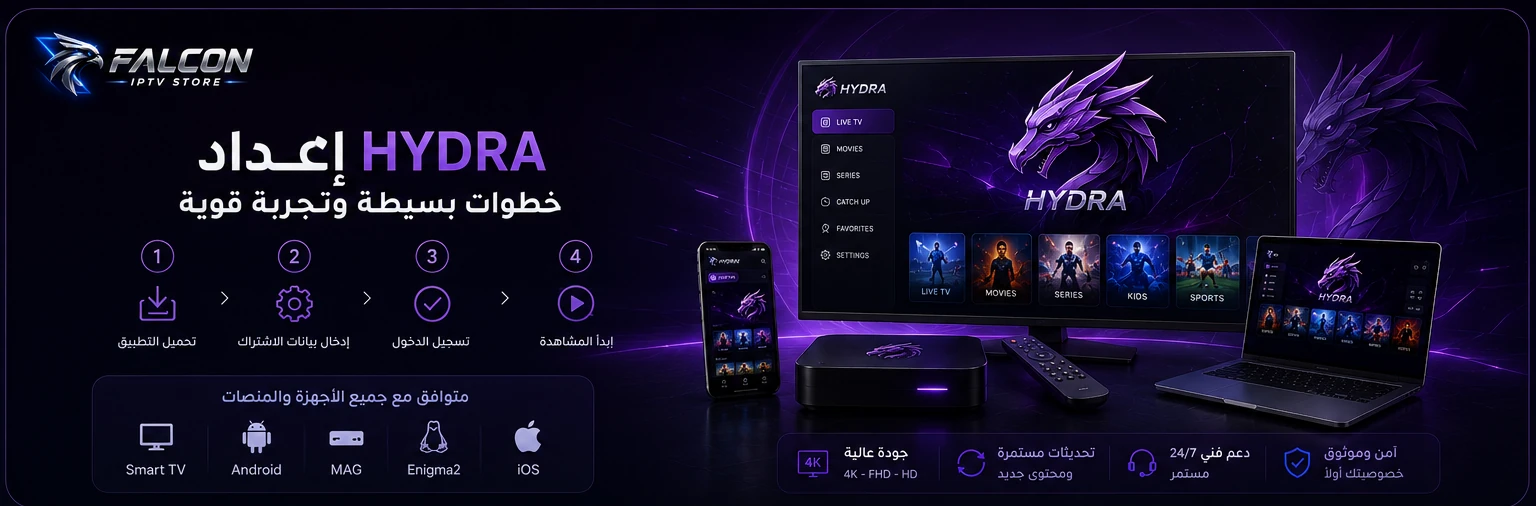
Start by device
Choose Your Device
Each card opens the correct app and workflow without mixing sign-in methods.TV
Android TV / Box
Hydra Prime via DownloaderOpen guide →AAndroid Mobile
Hydra Prime APKOpen guide →iOSiPhone / iPad
Hydra TV — Host 1 or 2Open guide →TVApple TV
Hydra TV — Host 1 or 2Open guide →WWindows
Hydra AppOpen guide →MmacOS
Hydra AppOpen guide →XOther Players
Xtream Codes for compatible appsOpen guide →?Troubleshooting
Quick checks and supportOpen guide →Android TV / Box / Xiaomi
Hydra Prime via Downloader
Downloader Code
9001285- Install or open Downloader.
- Enter code 9001285.
- Download, install, and open Hydra Prime.
- Enter the Hydra Username and Password from Client Area.
- Select Login.
- Download the APK using the button.
- Install and open the app.
- Enter the current Username and Password for the Hydra service.
- Select Login.
iPhone / iPad / Apple TV
Three clear ways to set up Hydra on Apple devices
Start with the recommended Hydra TV app. Use each code group only inside its intended app.Hydra TV
Download Hydra TV from the App Store, open it, and enter your subscription username and password.Download Hydra TVHost / Server
Save the details or sign in and start watching.Do not enter 999, f4k, or a full server URL inside Hydra TV.1or2S Player / 000 Player / NEXT+
Open one of these apps, or a similar app that supports the same login method, then enter your username and password.Host / Code
Use 999 or f4k in the Host or Code field for this workflow only.999orf4kIPTV Smarters Lite / General IPTV app
Enter your username, password, and the official server host supplied with your subscription credentials.Official server host
Find it in your activation email or service details in the Client Area.
No static server hostname is published on this page.Find it in your activation email or service details in the Client Area.
- Download the installer.
- Install and open the app.
- Enter the Username and Password from the Hydra service.
- Select Login.
- Download and open the DMG.
- Install or open the app.
- Enter the Username and Password from the Hydra service.
- Select Login.
Other Players / Xtream Codes
For apps that require a full Server URL
Server Address
You’ll find the server address in your activation email or under your service details in the Client Area.
You’ll find the server address in your activation email or under your service details in the Client Area.
Use the current Hydra Username and Password. This host is only for compatible apps requiring Xtream Codes, Player API, or a Server URL.Use the official server host only inside the general IPTV app, not Hydra TV or the alternative code-based apps.
M3U Plus
Secure details from Client Area
Troubleshooting